Windows Wi-Fi troubleshooting
“The Wi-Fi is bad” describes a symptom, not its cause. Windows exposes clues such as signal strength, band, channel, link speed and driver details. Read together with repeated measurements taken during the issue, they help narrow things down; no single value proves the cause.
Which values help diagnose Wi-Fi
Individual values rarely identify a cause with certainty. Compare them at the same location and while the problem is occurring, and repeat measurements because radio conditions change over time.
| Indicator | What it shows and its limits |
|---|---|
| Signal | Reception indicator at the device location. Below about 40%, the radio connection may have little margin; whether dropouts occur also depends on noise, channel use, distance and the driver. The percentage is a rough guide, not a universal threshold. |
| Frequency band | 2.4 GHz typically has greater range but is often more congested. 5 GHz often offers more available channels and higher data rates, but usually has less range and may be affected by DFS rules. 6 GHz is available only where permitted by regional rules and with a compatible Wi-Fi 6E or Wi-Fi 7 client and access point; it adds spectrum, usually with less range. If a client stays on 2.4 GHz despite apparently good conditions, band steering, client capability, access-point configuration or signal margin may be involved. |
| Channel | Channel numbers and visible networks can reveal use of the same or potentially overlapping channels. They do not show channel width, actual airtime use or contention. |
| Radio type | A reported standard such as 802.11n, ac or ax describes the radio mode in use. An older mode may reflect adapter capability, driver or access-point settings; the value alone does not prove a driver fault. |
| Link speed | Get-NetAdapter can report the adapter’s current link speed; for Wi-Fi this is usually the negotiated radio link rate. It is not guaranteed application throughput. Protocol overhead, shared airtime, signal quality and the remote endpoint reduce usable data throughput; transmit and receive rates may differ. |
| Ping | Ping measures ICMP replies and round-trip times to the selected target across the whole path. Filtering, prioritization, the target and the return path affect results. A missing ping reply does not prove a Wi-Fi fault; compare repeated tests to the gateway and external targets with the Wi-Fi conditions observed at the time. |
| Driver and driver date | An outdated or faulty driver can cause dropouts, compatibility problems or missing radio types. The driver date alone does not prove a cause. |
| Authentication / encryption | WPA2 or WPA3 Personal or Enterprise. “Open” or “None” is a security finding on a corporate network. |
| Profile | The active interface can show the profile name in use; the profile query lists saved names. An unexpected or old name is a clue to investigate. The list alone does not reveal incorrect settings or failed sign-ins. |
Signal strength in percent and dBm
Windows usually reports signal strength as a percentage. It is an indicator provided by the adapter and driver, not a standardized linear dBm scale. A formula such as dBm = (percent ÷ 2) − 100 can at most be a rough estimate for a particular measurement environment. The ranges below are rules of thumb, not universal thresholds.
| Percent | dBm | Rule of thumb |
|---|---|---|
| 80–100 % | no reliable dBm range | Usually good reception margin; throughput and stability also depend on congestion and interference. |
| 60–79 % | no reliable dBm range | Often adequate, depending on noise, channel and data rate in use. |
| 40–59 % | no reliable dBm range | Treat as a clue to lower margin; the percentage alone does not determine throughput. |
| below 40% | no reliable dBm range | Limited margin is possible; consider location, coverage, noise and packet loss together. |
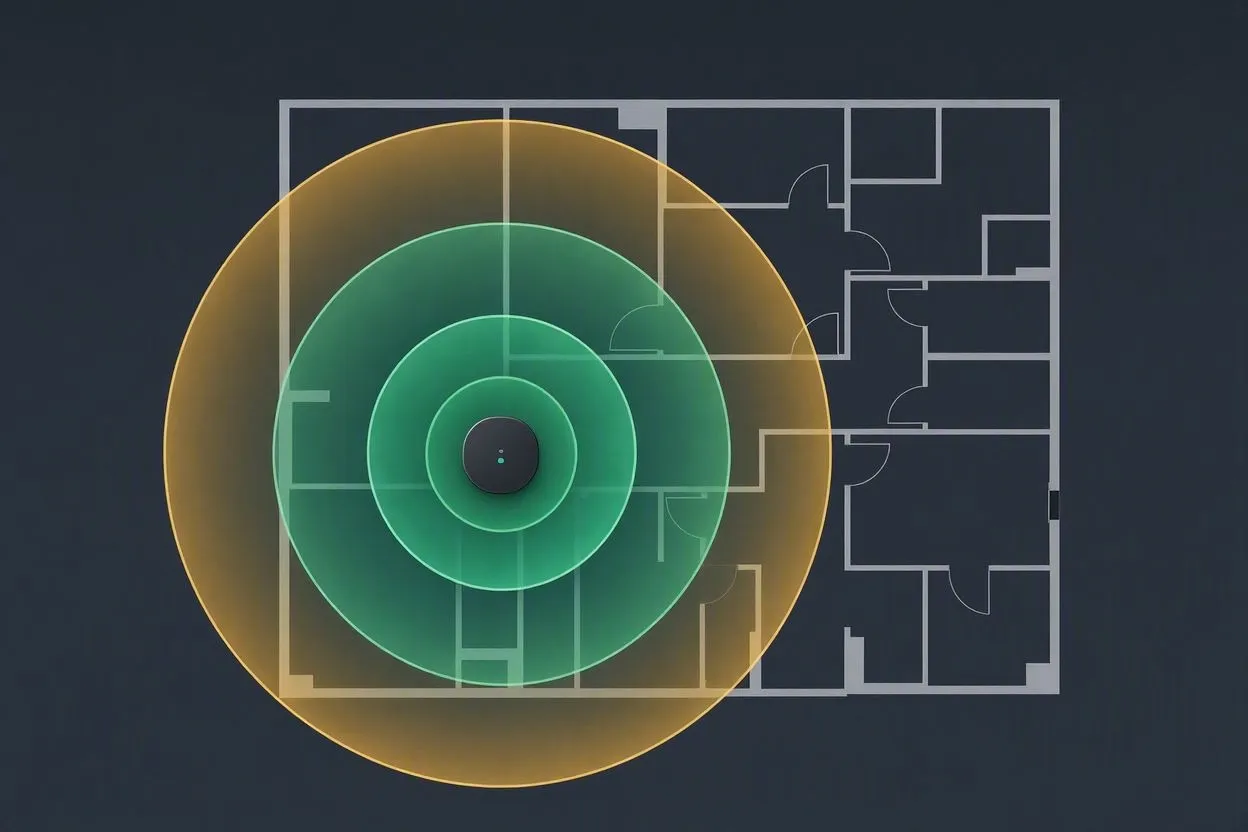
A high percentage does not rule out a Wi-Fi problem. Visible networks can indicate possible co-channel or adjacent-channel activity, but they do not show how busy a channel actually is. Collect signal, ping and radio-environment data during the same incident where possible.
Channels and potential overlap in the 2.4 GHz band
In the 2.4 GHz band, adjacent channel centres are 5 MHz apart while a 20 MHz channel is much wider. At that width, nearby channel numbers can use some of the same frequencies. The common 1, 6 and 11 plan separates 20 MHz channels; depending on the regionally permitted channels and channel width, 1, 5, 9 and 13 may also be considered. This is a planning guide, not a measurement of actual radio use.
Along with your channel, check the visible networks and their signal strength. A strong network on the same or an overlapping channel may contend for airtime, but visibility alone does not prove congestion. The 5 GHz band typically has more channels, although DFS and regional rules can limit the choices.
Commands for manual collection
The Wi-Fi queries generally work with standard user permissions; individual fields can depend on the Windows version, adapter, configuration or policy. Run the commands without trailing comments: “::” at the end of a line is not a valid inline comment in Command Prompt.
netsh wlan show interfaces
netsh wlan show networks mode=bssid
netsh wlan show drivers
netsh wlan show profiles
The queries show, where reported by the device, the active connection, visible BSSIDs and their radio/security details, driver capabilities and locally saved profile names. Labels vary by Windows version and language.
To check the link speed reported by the Wi-Fi adapter, run this separately in PowerShell:
Get-NetAdapter | Where-Object { $_.InterfaceDescription -match 'Wi-Fi|Wireless|WLAN' } | Select-Object Name, InterfaceDescription, Status, LinkSpeed, MacAddress
The reported value is not a guaranteed file-transfer or internet speed. For a useful comparison, record the time, location and target, and repeat checks if needed.
Common causes and how to check them
Distance or obstacles
A persistently low signal reading or a lower link speed may fit, but does not prove it. Compare repeated checks at the workstation and nearer the access point; walls, antennas and transmit power also matter.
Airtime contention
Good signal alongside high latency can have several causes. Strong networks on the same or an overlapping channel are a clue, not a measurement of congestion. Compare during the issue with a wired device or a different radio environment.
Outdated driver
Intermittent dropouts without an obvious trigger. Driver date and supported radio types provide context, but do not prove the driver is the cause. Consider hardware capability, available vendor versions and behaviour across repeated measurements.
Client stays on 2.4 GHz
May contribute to lower throughput, but does not prove a fault. Also check client capability, band steering, access-point configuration, signal margin and congestion.
Unexpected saved profile
Compare the active interface profile name with the saved names. The profile list alone does not show incorrect credentials or a failed sign-in; further connection or event details are needed.
Cause outside Wi-Fi
Unremarkable Wi-Fi readings alongside later packet loss or name-resolution errors can point elsewhere, but do not rule out a Wi-Fi issue. Compare repeated ping, traceroute and DNS checks taken during the same period.
Collect Wi-Fi diagnostics automatically
admin-tools runs the four netsh queries and the adapter query together with the other network checks. Results group the active connection, adapter and driver, visible networks and saved profile names. Ping, traceroute, DNS and routing provide additional time-specific clues but do not identify a cause with certainty by themselves.
See the full list of Windows diagnostic checks; the static sample report contains fictional sample data only, including eight visible Wi-Fi networks.